Telegram Keyword Monitoring: Get Alerts for Key Words
This is an add-on module. In your dashboard open Modules and press Install module on the Alerts card, and it shows up in the menu. Free with any plan.
Dozens of work chats, supplier channels, client groups: nobody can read it all, and missing the one message that matters hurts. A large order got buried in discussion, a mention of your brand slipped by, an urgent question waited half a day. The fix is simple: instead of you watching the chats, a bot watches for words and messages you when they show up.
What keyword tracking means
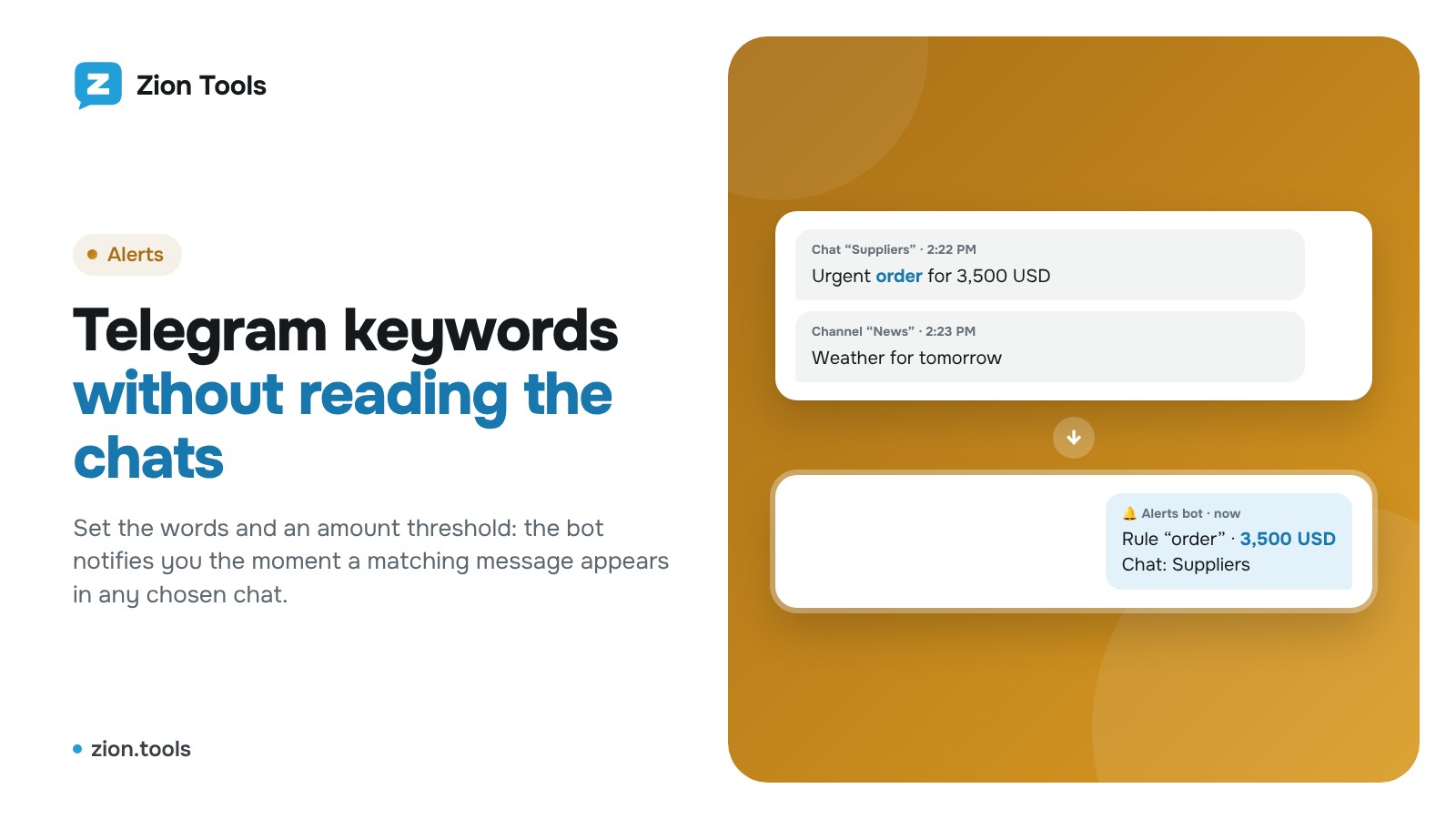
It is a rule with three parts: what to look for (one or more words), where to look (which chats and channels) and what to do when it is found (send you a notification). You can also set an amount threshold, so “order for 300 USD” goes unnoticed while “order for 3,500 USD” does not.
How is this different from Telegram search? Search helps when you go looking. An alert works the whole time you are busy with something else.
What is worth tracking
- Orders and requests. Words like “order”, “request”, “paid”, plus an amount threshold.
- Incoming payments. Bank notifications in a chat: the word “Received” and an amount above your limit.
- Mentions of your brand or product in niche chats and channels.
- Urgent things. “Urgent”, “not working”, “refund” in client groups.
- Signals in topic channels, such as an exchange rate, a promotion or a new price list item.
How to avoid a flood of notifications
The most common mistake is a word that is too general. A rule on “hello” turns the bot into noise, and soon you stop reading it.
- Use specific words. “Received”, not “money”.
- Add an amount threshold. Small change is not interesting, large operations are.
- Pick chats on purpose. One rule for one meaning, in the chats where that meaning appears.
- If you need every word at once rather than any of them, switch on the strict mode: a message passes only when it contains each word on the list.
- Separate urgent from routine. Send urgent rules to your private chat and the rest to a team group.
How to set it up in Zion Tools
- Connect a Telegram account that is a member of the chats and channels you need. You do not have to add the bot to them: your account reads the messages.
- Open Alerts and connect the bot with “Private chat” or “Add to group”. It only delivers notifications.
-
Press Add alert and fill in the form:
- What text to look for in a message: one word or several separated by commas, any of them triggers the rule. Case does not matter;
- Amount from: the threshold. The number that follows the matched text in the message is used. Leave it empty and you get a notification for any message with that word;
- Which chat to watch: one or several chats.
- Test the rule on a sample: paste a message text and press Check. The dashboard shows which amount is found and whether the rule fires.
- Under Advanced set a name, the strict mode (all listed text at once), the notification text and extra delivery targets.
Where the notification goes
The bot sends a message with the rule name, the chat, the amount, the text and a link to the original message. Besides Telegram, each alert can go to a webhook: Discord, Slack, MAX or your own URL (CRM, Make, Zapier, n8n). Your own URL receives JSON with a signature in the X-Zion-Signature header, so the receiver can verify it.
The alert log
Every alert is saved in the log: time, chat, amount, text. You can export it to CSV, so you can check that nothing was missed and count how many orders arrived in a week.
FAQ
Do I need to add the bot to the chats I watch? No. Your connected account reads the chats, and the bot only sends notifications to where you added it.
Does it work on channel posts? Yes, if your account is a member of the channel and can see its messages.
Does letter case matter? No, “Order” and “order” are found the same way.
Can I track different words in different chats? Yes, make separate rules: each has its own words, threshold and chats.
How this works in Zion Tools
Full details are on the alerts page. If bank notifications arrive in Telegram, see the guide to card payment alerts; to catch repeated requests, use the Validator. To send alerts to other systems, read about webhooks.
Sign up and set up your first rule in a couple of minutes.