How to Connect a Telegram Account to Zion Tools with a QR Code
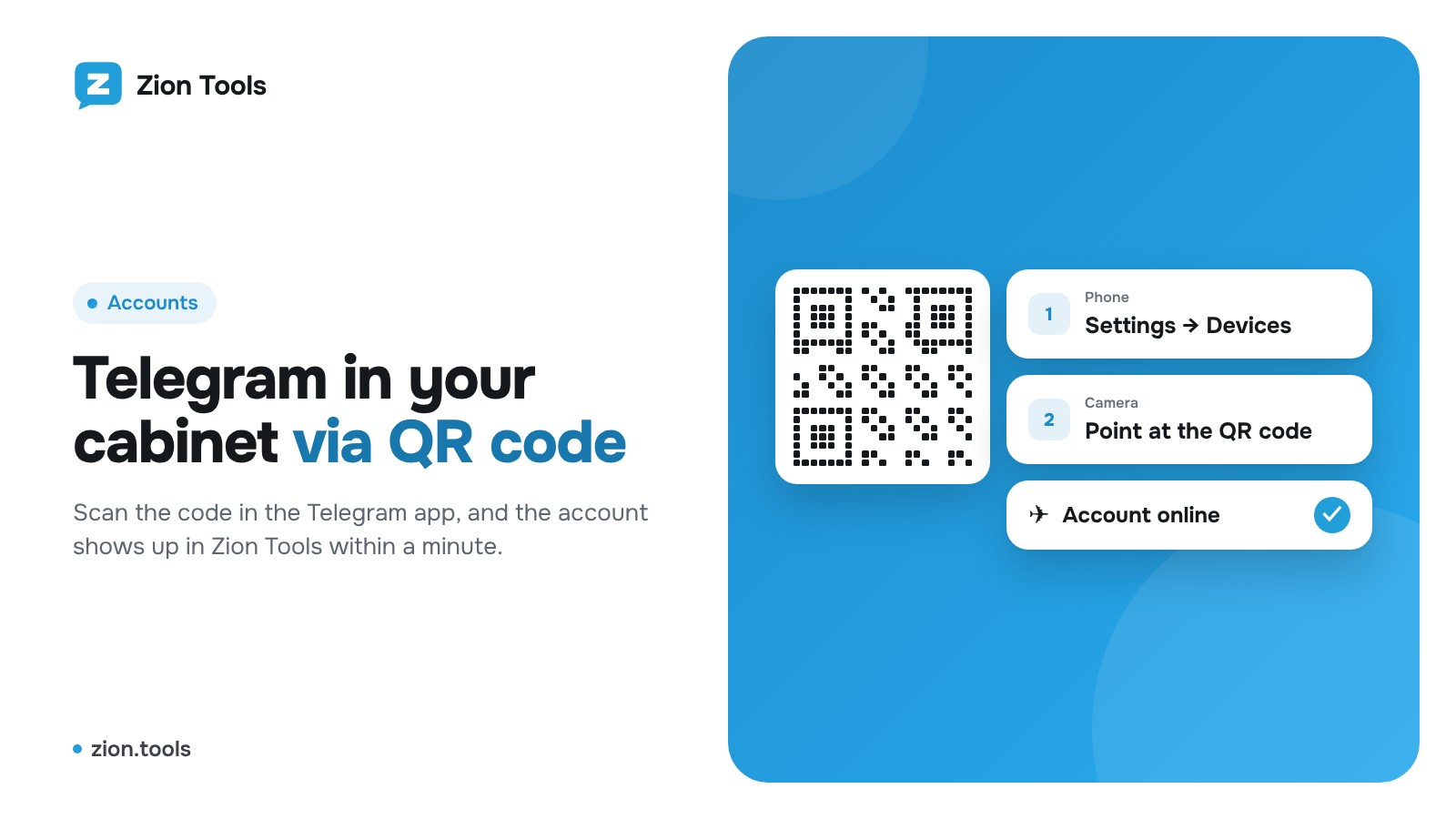
Forwarding, alerts, analytics and checking messages from other bots work through your Telegram account: the service sees the same chats you do. Connecting takes less than a minute.
Step 1. Open “Accounts”
Sign up or log in and open Accounts in the menu. Click Show QR code.
Step 2. Scan the code in Telegram
On your phone open Telegram → Settings → Devices → Link Desktop Device and point the camera at the QR code. In a few seconds the account appears in the list.
Step 3. Two-step verification password
If you have a cloud password in Telegram, the dashboard will ask for it. It is sent only to Telegram to log in and is never stored.
Is it safe?
- Login uses the official Telegram API, the same way Telegram Desktop and other apps work.
- The service never needs your account password.
- You can revoke access at any time: Telegram → Settings → Devices → terminate the Zion Tools session, or remove the account in the dashboard.
What next
Once connected, set up message forwarding, alerts or bank notification analytics. The Receipt scanner, Bookkeeping and Validator bots don’t need an account: you add them to a chat via a link from the dashboard.