Autopost to a Telegram Channel from Another Channel
Want the right posts from someone else's channel to show up in yours on their own? Autoposting solves three jobs: it fills your channel, gathers news from several sources into one feed, and mirrors your posts to a backup channel. Here is how it works, what is allowed, and where people usually go wrong.
Three ways to move posts
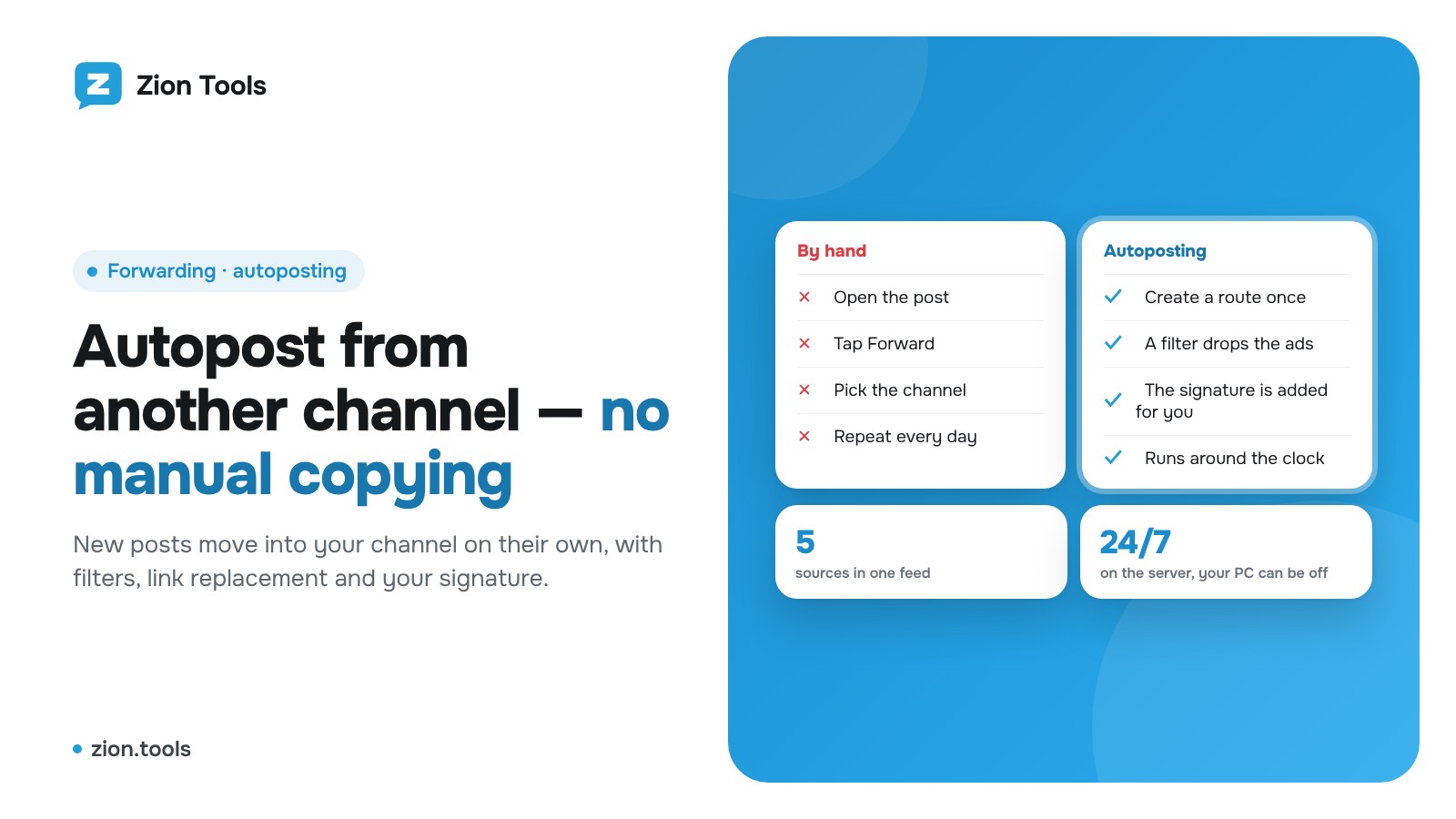
By hand. Open the post, tap Forward, pick your channel. Fine for a couple of posts a week. With several sources and dozens of posts a day it eats your time and misses the urgent ones.
An admin bot. A bot is added to both channels and copies messages. The catch: the bot has to be an admin in the source channel, which is only possible for your own channel. A bot cannot read somebody else's channel.
Your Telegram account. The service reads chats through a connected account, the same way Telegram Desktop does. If you are subscribed to a channel, the service sees its new messages. You do not need admin rights in the source, but the account needs the right to post in the destination channel. This is how Forwarding works in Zion Tools.
What to know before you set it up
- Copyright. Other people's texts and images belong to their authors. Move material by agreement, from partner channels, or with a credit to the source. Copying without asking is at your own risk, and Telegram accepts abuse reports.
- The "Forwarded from" label. With it, readers see the source and can open it. Without it, the post looks like your own. We compare both modes in the article on forwarding without the label.
- Ads and service posts. Everything gets moved, including ads for other channels. Without filters your feed turns into noise quickly.
- Load on the account. Sending too much, too fast looks like spam. For safe pacing, read Is Telegram forwarding safe.
Setting up autoposting in Zion Tools
- Connect an account. In Telegram accounts, sign in with a QR code (see how to connect an account). The account must be a member of the source channel and an admin with posting rights in your channel.
- Create a route. Open Forwarding. In New route, pick the account, tick the source channel in the From list and your channel in the To list. You can have several sources and several destinations: one source can feed many channels, and albums move whole.
- Choose the mode. The Forward tile keeps the source label, the Copy tile publishes the post as yours.
- Press Add route. From then on messages move on the Zion Tools server around the clock. Your computer can stay off.
Filters, replacements and a signature
Right after creating the route, open Filters and replacements on it. There are three groups of settings.
Filters. In the "Forward only if the message has the word" field, list the words that select posts, such as the topics you want. In the "Don’t forward if the message has the word" field, add "ad", "giveaway", "promo code". You can also pick message types (text, photo, video, files) and tick "Skip messages with links".
Text changes. In Copy mode you can replace text: swap other people's links for yours, remove @mentions, add text at the start and a signature at the end, for instance an invitation to subscribe to your channel. Before saving, paste a sample message into the Check section and see the result.
Test on a sample. It is the quickest way to confirm a filter does not cut too much.
Common mistakes
- No subscription. The account is not a member of a closed channel, so the route stays silent. Join the channel with that account.
- No right to post. The account is not an admin in the destination channel. Give it the right to post messages.
- A filter that is too loose. Empty fields mean "forward everything". Set exclusions up front.
- Account offline. The route is paused until you reconnect the account. In Accounts you will see a red mark.
Three working scenarios
A feed from several sources. You run a niche channel and follow five specialist channels. Create a route from each one into yours, set a filter on the words of your topic and exclusions for ads. Subscribers get one tight feed, and you spend minutes a week checking it.
A backup channel. A main channel can be blocked or restricted. A route from the main channel to a spare one copies every publication, so you keep your audience and archive. Copy mode without filters fits here.
A partner network. One post goes to several of your channels by region or language. Add a separate signature for each destination so readers know where to subscribe.
Check the result on day one
On the first day, look at the feed the way a subscriber does: are there duplicates, did albums go missing, does the signature read well. If extras slip through, extend the exclusion list. If something needed is dropped, loosen the filter or untick skipping messages with links. A couple of iterations and the channel runs itself.
FAQ
Do I need to be an admin of the source channel? No. A subscription visible to your account is enough.
Can I send posts to several channels at once? Yes, tick several destinations in the To list.
What if the post is edited at the source? The message in your channel stays as it was when sent.
Can I send to Discord or my own address instead of a channel? Yes. Choose Webhook in To. See the article on webhooks.
How it works in Zion Tools
All of these steps happen in the Forwarding module, which is included in every plan. Details are on the Telegram message forwarding page. If you also need to watch for words in chats, turn on the free Alerts module, described on the keyword alerts page.
Sign up and build your first route in a few minutes.