How to Protect a Telegram Account From Hacking
Telegram accounts are rarely lost to a movie-style hack. Far more often the owner reads a login code to a "support agent", scans a stranger's QR code or signs in on a fake page that looks official. After that, the attacker gets your chats, contacts, channels and groups, and can write to your friends in your name. The good news: the main defenses take about fifteen minutes and live inside the app.
How Telegram accounts are actually lost
- The login code is handed over. A call or message from "support", "your bank" or "a courier" asks for the code. A Telegram code is for signing in with your number and nobody else should ever hear it.
- Phishing. A link to "verify your account", "vote" or "claim a prize" asks for your number and code. The page looks like Telegram, but the address is different.
- A stranger's QR code. QR login works like an invitation: scanning a code on your phone links the device that displays it to your account. If someone asks you to "scan this to confirm", they are trying to attach their device to your account.
- SMS interception. A SIM can be swapped or a message intercepted. If the account has no cloud password, the SMS code is the only line of defense.
- Forgotten sessions. You once signed in on a borrowed computer or a test service and never signed out. That session can stay active for months.
Step 1. Turn on the cloud password
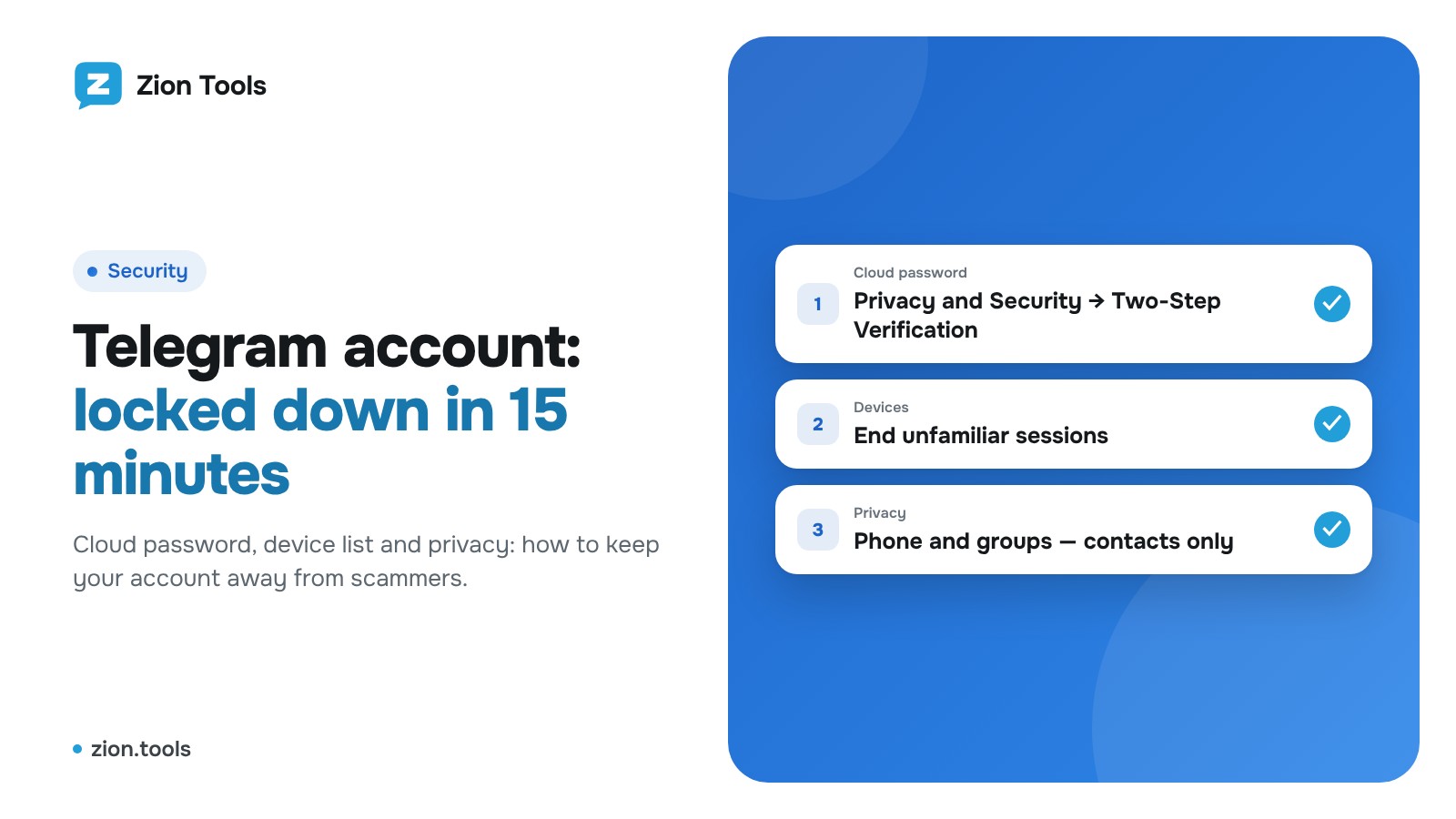
This matters most. Open Settings → Privacy and Security → Two-Step Verification and set a password. From then on, every new login asks for this password as well as the code.
- Make it unique: not the one you use for email or banking.
- Add a recovery email. Without it, a forgotten password means a week of waiting, and anyone who controls your mailbox can start a reset, so protect that mailbox like the account itself.
- Don't write a hint that outsiders could guess.
Step 2. Review your devices
Open Settings → Devices. It lists every active session with the app, system, city and last activity. Terminate anything unfamiliar right away. "Terminate All Other Sessions" signs you out everywhere except the current device.
Also set old sessions to terminate automatically after 1 week, 1 month, 3 or 6 months, so forgotten logins disappear on their own.
Step 3. Tighten privacy
In Settings → Privacy and Security check:
- Phone number. Show it to contacts only, or to nobody.
- Who can add you to groups. Remove "Everybody", otherwise you get pulled into spam chats and scam mailings.
- Passcode lock. It protects your chats if the phone ends up in the wrong hands.
Step 4. Learn to spot fakes
- Login notices arrive only in the official "Telegram" chat (with the badge), never in an ordinary conversation with a user.
- Telegram doesn't ask for codes by phone, doesn't write first about a "block" and doesn't ask you to follow a link to "confirm your account".
- Before typing your number and code on a page, read the full address. Sign in through the app.
- A bot or person you gave access to your account sees your chats. Check whom you trust.
What to do if the account is already hacked
- Log back in with your number if you can, open Settings → Devices and end every foreign session.
- Turn on or change the cloud password.
- Warn your contacts and channel admins: someone may have asked them for money in your name.
- Review which bots and services have access to the account and remove what you don't need.
- If you can't get in, contact Telegram support from the app or at telegram.org/support.
FAQ
Is an SMS code enough? No. SMS can be intercepted and codes can be talked out of you. The cloud password adds a second step only you know.
What if I forget the cloud password? With a recovery email you can reset it. Without one you wait and lose the account data, so add the email right away.
Is it risky to connect an account to a service? Any connection creates a separate session with access to your chats. Connect only services you trust and know how to end the session.
Do I need a cloud password if the app has a passcode? Yes. The passcode protects the phone, the cloud password protects login from any new device.
How this works in Zion Tools
When you connect a Telegram account in the dashboard (by QR code or phone number), Zion Tools opens a separate session. In Telegram it shows up under Settings → Devices as "Zion Tools", and you can end it from there at any moment, which cuts the service off immediately. If the account has a cloud password, the dashboard asks for it during QR login, and we never ask for a phone login code anywhere outside the connection window itself.
Protect the dashboard too: two-factor authentication in Settings → Security works with passkeys, Google Authenticator and a Telegram code. Keep several accounts in one place with Multi-accounting, and read how to avoid restrictions when forwarding in is Telegram forwarding safe. If an account goes offline, alerts will tell you in Telegram.