Two-factor authentication: why a password is not enough
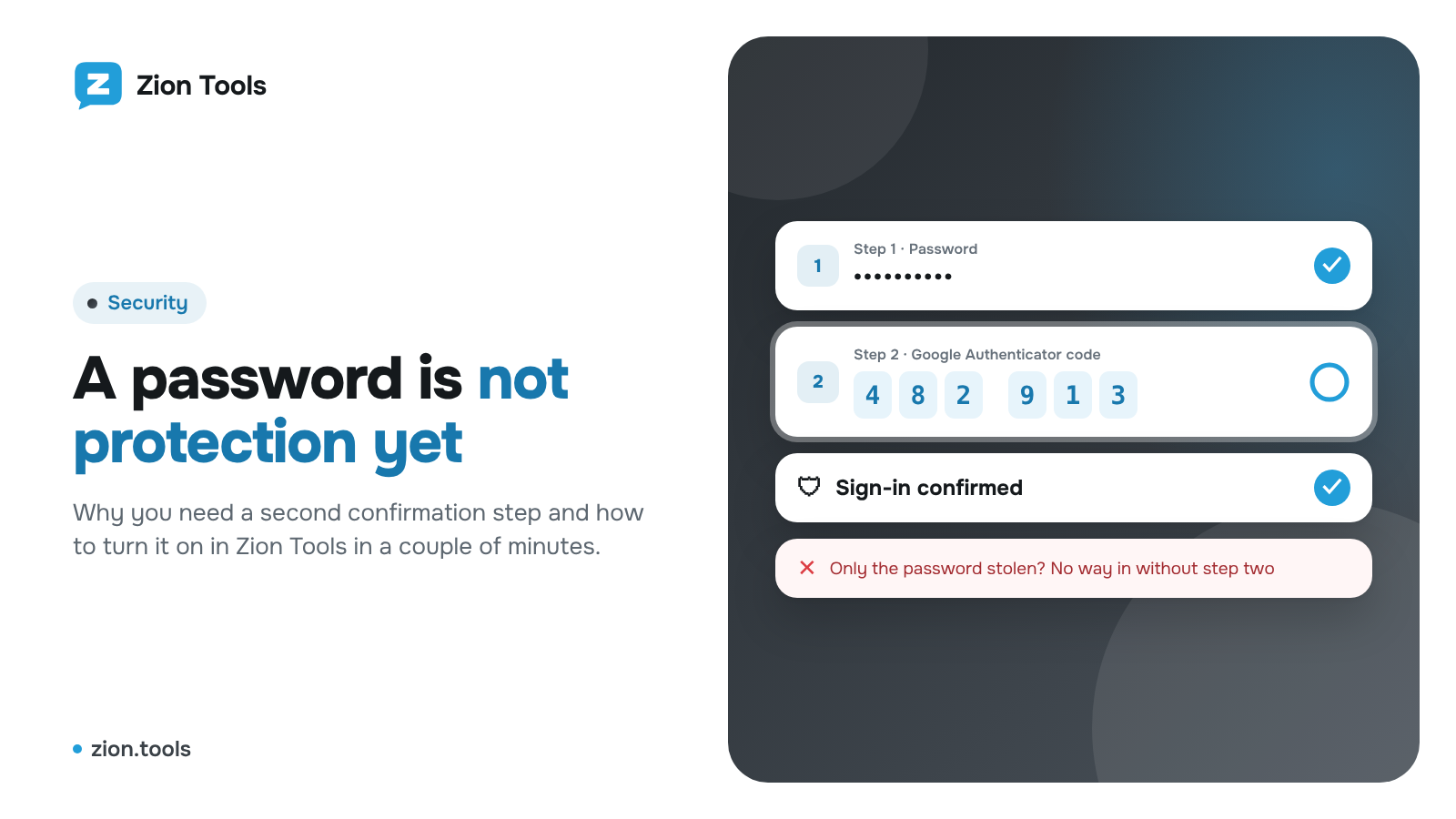
A password is something you know. It can be spied on, guessed, phished through a fake sign-in page or found in a leak from another site where you used the same password. If the password is the only protection, everything in your cabinet belongs to whoever learns it.
Two-factor authentication adds a second step: after the password you confirm it is really you with something you have: a phone with a code app, your Telegram or your fingerprint. A stolen password is not enough without that second step.
What the second step protects against
- Password leaks. A password from an old forum or shop leaks, and attackers try it on other sites. Without the code from your phone they cannot get in.
- Phishing. Even if you typed your password on a fake page, a one-time code lives for seconds or minutes and is never accepted twice.
- Someone else’s computer. You signed in on another device and forgot to sign out? Money still cannot be withdrawn without the second confirmation.
- Withdrawals. The most valuable thing in the cabinet is your balance. Withdrawals are confirmed separately, so even an open session cannot take your money.
Methods available in Zion Tools
All methods are in Settings → Security. Turn them on in any combination.
- Passkey: fingerprint, Face ID or a device key. It replaces the password and codes and cannot be spied on or typed into a fake page.
- Google Authenticator: a 6-digit code from an app on your phone (any other code app works too). The code changes every 30 seconds, and each one is accepted only once.
- Telegram code: a 6-digit code in the Zion Tools notification bot. It arrives when you sign in and withdraw, is valid for 10 minutes, works once and expires after five wrong attempts. Connect the bot on the Notifications tab first.
- Trading password: a separate password for withdrawals that differs from your cabinet password. Even if someone learns your sign-in password, they cannot withdraw money.
Where confirmation is asked
- Signing in to the cabinet. If at least one method is on, the cabinet asks for confirmation after the password. With a passkey you just touch the sensor or look at the camera. Signing in with Google or Telegram asks for the second step too.
- Withdrawal. The withdrawal form asks for the trading password (or cabinet password), the Google Authenticator code and the Telegram code. An icon next to each field shows whether that protection is on.
- Withdrawal address whitelist. A new address is added with your password and a code. Turn on Withdraw only to these addresses and withdrawals go only to saved addresses; removing this restriction requires your password and a Google Authenticator code.
Turn it on in a couple of minutes
- Open Settings → Security.
- Add a passkey. The browser will offer a fingerprint, Face ID or a device key.
- Connect Google Authenticator: scan the QR code in the app and enter the code from it.
- Connect the bot on the Notifications tab, turn on Telegram code and set a Trading password.
- On the Whitelist tab, add your withdrawal addresses and turn on Withdraw only to these addresses.
On the left in Settings, at the bottom of Profile, you’ll see the protection level: a bar of four methods. No methods means low, one or two means medium, three or four means high. Click an item on the bar to jump straight to that setting.
FAQ
What if I lose the phone with Google Authenticator? Sign in with another method you turned on (a passkey or a Telegram code) and connect the app again. That’s why it’s worth turning on two or three methods.
Will it slow down my work? Confirmation is asked only when you sign in and when you withdraw money. Forwarding, bots and the other modules work as before.
Which method to choose if only one? A passkey: it is the fastest and protects against fake sign-in pages. Add Google Authenticator as the second.