How to Build a Report from Bank Notifications in Telegram
This is an add-on module. In your dashboard open Modules and press Install module on the Transaction analytics card, and it shows up in the menu. Free with any plan.
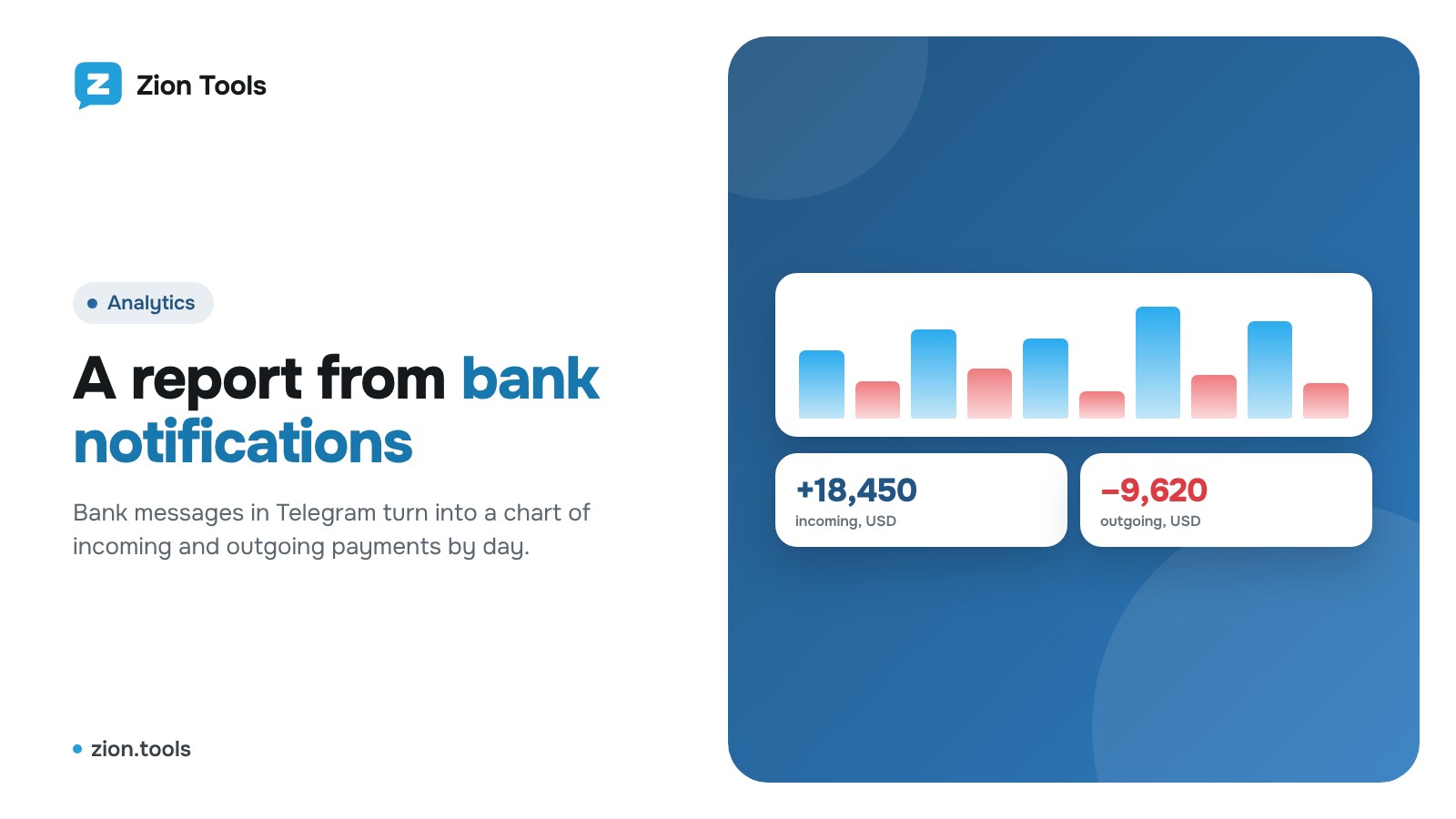
Many banks send a notification for every transaction to Telegram. Transaction analytics turns them into a report: how much came in and went out per day, week and month.
Step 1. Choose a source
Connect a Telegram account, then in Analytics add a source: the chat where bank notifications arrive (a group, the bank’s bot or your forwarding).
Step 2. Create a template
Paste a real notification and replace the values with fields. Keep the constant text as is:
- before: “Received 2,450 USD. Card *4417. Balance: 18,300 USD”;
- after: “Received {amount} {currency}. Card {card}. Balance: {balance} {currency}”.
Available fields: {amount}, {currency}, {place}, {card}, {time}, {balance}, {transaction}. Set the template type: incoming or outgoing. Usually there are two templates: one for credits, one for debits.
Below the template there’s a test: paste another notification and the dashboard shows what will be extracted.
Step 3. Load history
New transactions appear instantly. To include notifications that have already arrived, click “Load history”.
What’s in the report
- incoming and outgoing per day, week and month;
- a daily chart;
- separate totals for each currency;
- search by place, card and operation;
- Excel export.
The service sees only the notifications in the chosen chat. It never gets access to your online banking.
To Google Sheets, a CRM and a team chat
Every new transaction can go straight to a webhook: press Webhooks in the Notification sources block, tick a Discord, Slack, MAX or your own webhook (Make, Zapier or n8n, for example, to have transactions land in Google Sheets automatically) and press Save. You get income or expense, amount, place, card and balance. Transactions from Load history aren’t sent to webhooks.
More: transaction analytics.