Telegram AI Commenting: How to Set Up Neurocommenting
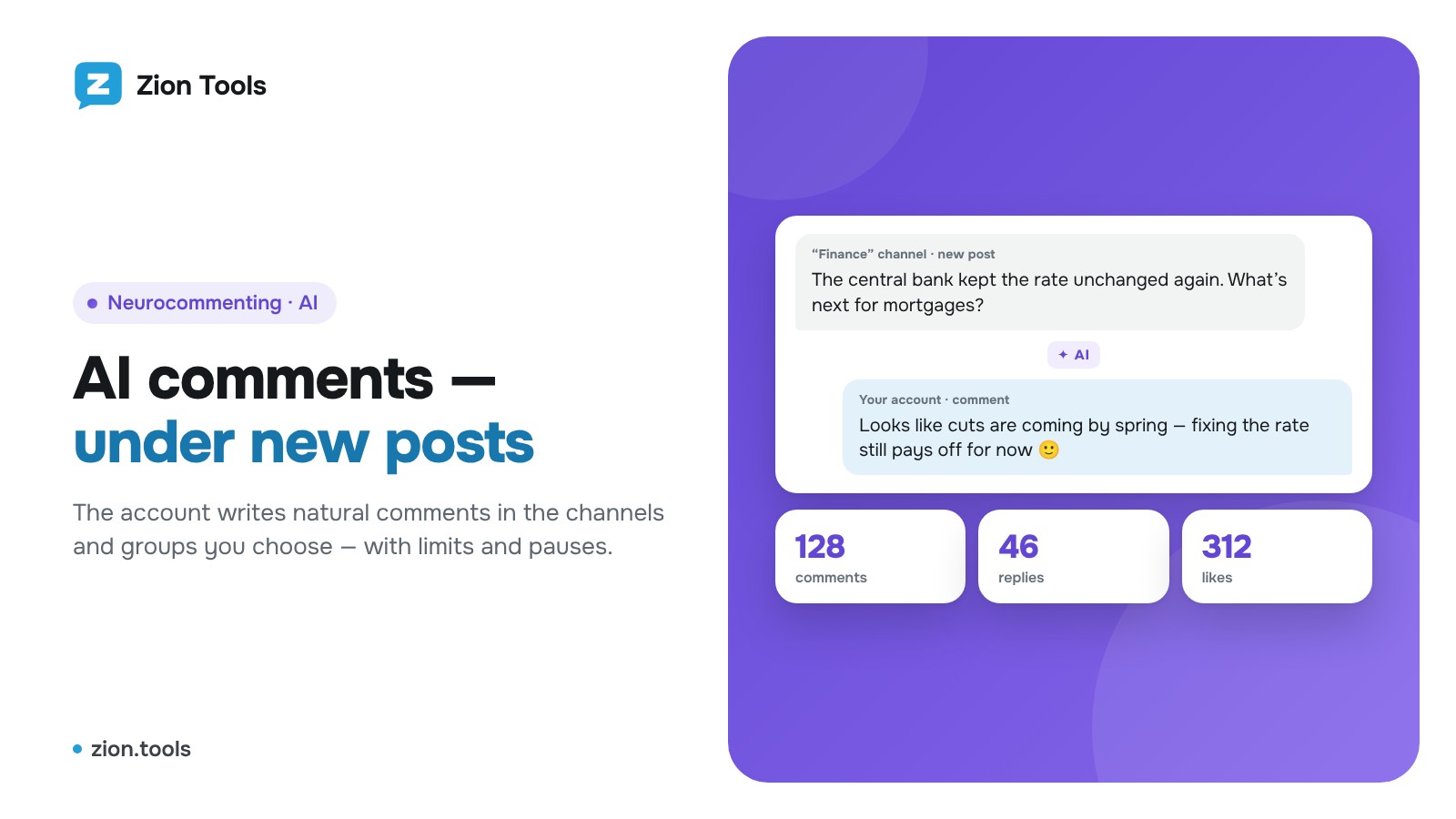
Neurocommenting writes comments under new posts in the channels you choose and replies to messages in groups, all from your Telegram account. AI writes each text to match the post or message, in the style you set, and readers start to notice your account.
Step 1. Prepare an account
Sign up and connect a Telegram account in Accounts. Neurocommenting, like Multi-accounting, needs a proxy: buy one on the account card or connect your own.
Step 2. Create a campaign
Open Neurocommenting and click New campaign. The window has two steps; the first is Settings:
- Name: for example, “IT channels”;
- Account: whose name to post under;
- Comment style: for example, “friendly, short, sometimes ask a question”;
- What to comment on: all new channel posts and people’s messages in groups, or only the post pinned by an admin;
- Comments per hour: no more than 20;
- Per channel or group per hour: how many comments can go to one chat per hour;
- Account warm-up: during the first week the hourly limit grows 1 → 2 → 3 → 5 → 8 → 12, and from day 7 your own limit applies. On by default for a new campaign; keep it for a new account or one that hasn’t commented before;
- Join discussions under posts: the account also replies to people in the comments under the campaign channels’ posts, on the post’s topic and only to meaningful comments (not bots, not your own accounts and not short remarks). Hourly limits and payment are shared with the campaign;
- Delay before a comment: random, within the limits you set (30 seconds to 30 minutes).
Example comment shows how the AI would reply to any post text without sending anything.
Step 3. Add channels and groups
Click Next. On the second step, Channels and groups, tick where to comment: the list shows channels and groups the account is already in. If a chat isn’t there, paste `@channel`, `@group` or a `https://t.me/…` link and click Add. Only channels with open comments work; the account subscribes to the channel and joins its discussion chat itself. Groups work if the account may write there.
Click Save campaign: the account joins the ticked chats one by one, and the campaign starts. If a chat doesn’t fit, the window shows it with the reason. To change channels and groups later, click Edit on the campaign and open the Channels and groups step.
Not sure where to comment? Type keywords into Find in Telegram, for example “crypto, p2p, marketing” (up to 5 queries separated by commas), and press Find. The service uses Telegram’s global search and shows only channels with open comments and groups where the account can write, with member counts. Tick the ones you need and save the campaign: the account joins them and starts commenting. Add them a few at a time: Telegram limits mass joining.
How it works
When a new post is published, the account waits a random pause and leaves one comment under it. In a group the account likewise replies to new messages from members, skipping bots, its own messages and short remarks like “ok”. The AI skips ads, giveaways and messages with nothing to reply to. The Comment log has two tabs: All shows messages waiting for a comment, sent ones and those that couldn’t be answered (with the reason); Answered shows only sent comments, with links.
Each campaign card shows replies and likes on your comments. A short link for the account's bio counts clicks from the profile, and the profile channel shows subscriber growth. Every journal entry names the account that writes it, and the Clear button hides old entries. If an account leaves a channel or group, that chat is removed from the campaign automatically.
Keep it relevant: Telegram may restrict an account for repetitive or promotional comments, and channel admins may delete them. You are responsible for choosing channels and groups and following their rules.
Pricing
The first comments are free, then a fixed price per comment sent, charged from your balance. The VIP plan includes a 30-day comment quota. Skipped comments are not charged.
Comments in Discord, Slack and a spreadsheet
Every posted comment can go to a webhook: press Webhooks in the Campaigns block and tick Discord, Slack, MAX or your own URL. You get the campaign, channel or group, the comment text and a link to it.
More on the Neurocommenting page.