How to Manage Multiple Telegram Accounts in One Window
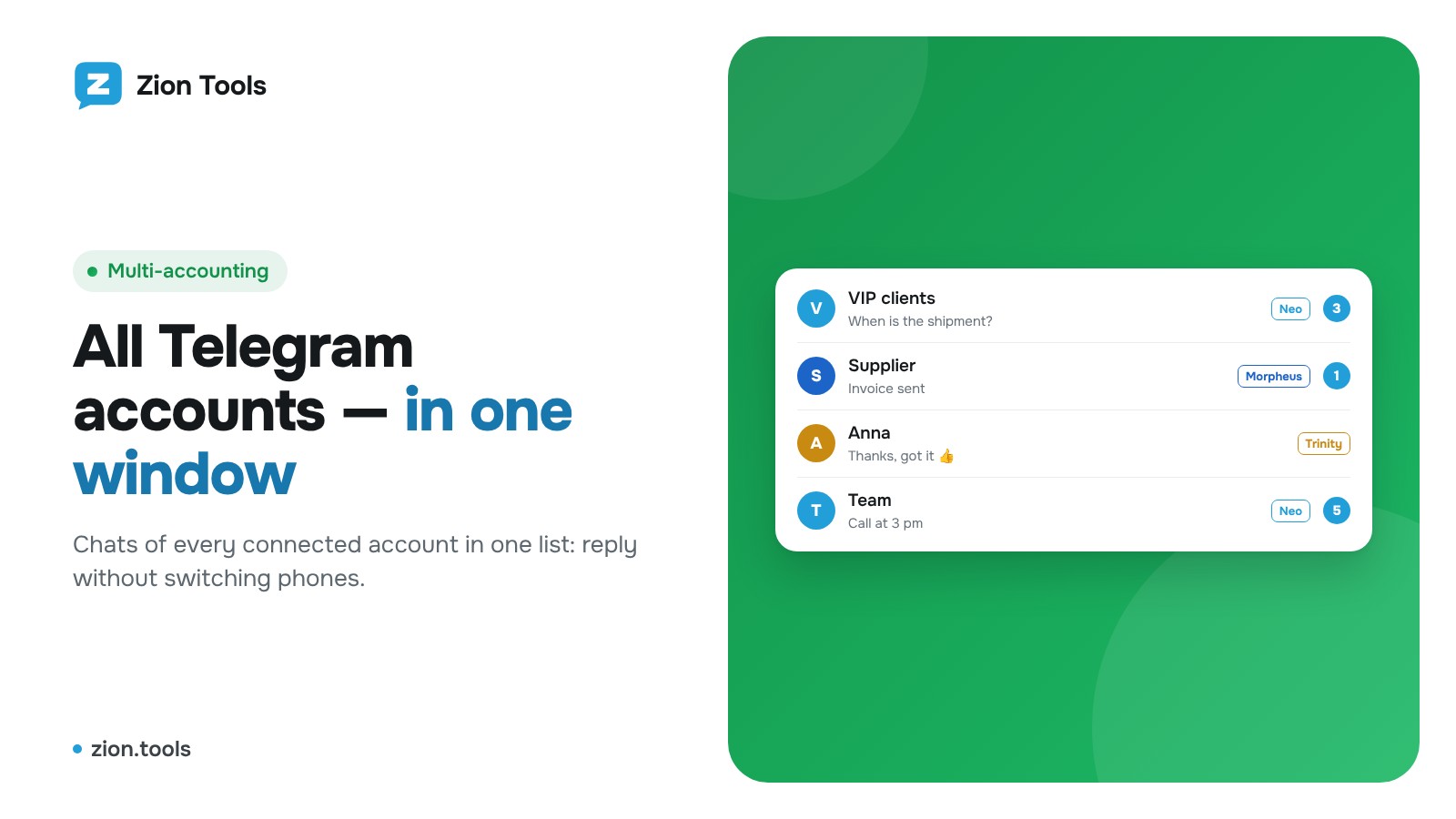
Multi-accounting brings the chats of all your Telegram accounts into one dashboard window. You reply to clients from the right account in the browser, without keeping several phones or switching between profiles.
Step 1. Connect accounts
Sign up, open Accounts and connect an account with a QR code or a phone number. Repeat for each account. How many accounts you can connect depends on your plan.
Step 2. Give each account a proxy
In Multi-accounting each account works through its own proxy, so Telegram sees a regular user with their own IP rather than many accounts from one server.
- Buy a proxy on the account card in Accounts. The default country is the phone number’s country, the term is 30 days, renewal from the balance.
- Own proxy: paste an address as `host:port:login:password`, `socks5://…` or `http://…`. The service checks it before connecting.
One proxy per account. A proxy can be disabled or switched; the previous one is saved and can be connected again.
Step 3. Work in one window
Open Multi-accounting:
- left: accounts. Open “All accounts” at once or each one separately; drag to reorder, pin an account;
- middle: chats with search, the Personal, Groups, Channels and Unread folders, archive, pinned chats, Contacts and Saved Messages;
- right: the conversation, just like Telegram, with reply, forward, reactions, edit and delete, pinned messages, files and videos.
Right-click (long-press on a phone) opens the chat or message menu. Full screen expands the window over the dashboard.
Profile, Stars, gifts and stories
Pick an account on the left: the menu button next to the search opens its My profile. There you change the name, @username and Bio, and see the Stars balance and received gifts. Buy a gift pays with the account’s Stars, and the gift appears in the profile. You can send a gift to someone from the chat menu or from a group member’s card. Telegram sells Stars in its app and on Fragment: Buy Stars and Send Stars open Fragment with the recipient’s @username.
The same menu has New story (a photo or video with a caption, choosing who sees it), Create a group and Create a channel with contact invitations. In All accounts the menu button becomes a broom: Clear cache for all accounts.
Voice messages, search, clearing history and GIFs
- Voice messages: when the message field is empty, the send button turns into a microphone. Press it and talk; press it again or hit Enter to send a voice message with a waveform, just like from the Telegram app. The bin or Esc cancels the recording, and the browser asks for microphone access once. Incoming voice messages play right in the conversation, with seeking along the waveform and 1×, 1.5× and 2× speed.
- From three characters, the search shows Global search: people, groups and channels by @username across Telegram. You can read a group you found and press Join the group.
- Clear history in the chat menu deletes the conversation only for you, for both sides, or, in a group, only your messages.
- Click a sender’s avatar or name in a group to open their card on the right with their bio, gifts and Message, Gift, Stars buttons.
- Next to the emoji there’s a GIF tab with the account’s saved GIFs and search by word.
There are no voice or video calls in the dashboard; make calls in the Telegram app.
Folders, privacy and PIN
- The account’s folders from Telegram appear as tabs above the chat list. The slider button at the end of the tabs opens Folders: create a folder, pick chat types (contacts, groups, channels, bots) and individual chats. The changes show up in the Telegram app too. In All accounts the same button opens Custom folders: they gather chats from different accounts into one tab and are stored in Zion Tools, not in the Telegram app.
- Privacy in the menu: who sees the phone number, can find the account by number, sees last seen and the photo, can call and add it to groups. The Blocked tab is there too, and you can block someone from the chat menu or the user card.
- Devices (a tab in Privacy): all of the account’s sessions with IP and country. End someone else’s session and set inactive sessions to end automatically.
- PIN (another tab there): 4–8 digits for each account. Without the PIN the account’s chats won’t open in the dashboard, and after the chosen idle time the account locks itself. The lock next to Contacts locks the selected account at once, and in All accounts it locks the whole of Multi-accounting, which any account’s PIN unlocks. A forgotten PIN is removed with your dashboard password.
What not to do
Multi-accounting is for conversations with people who write to you. Mass messaging and messages to strangers are banned by Telegram rules and our terms: one account can send no more than 30 messages per minute.
Pricing
Multi-accounting is included in the VIP plan or can be added daily on the Custom plan. A proxy is paid separately for 30 days. We don’t store messages: they are loaded from Telegram each time.
More on the Multi-accounting page.