API and webhooks: connect your site and CRM to Telegram
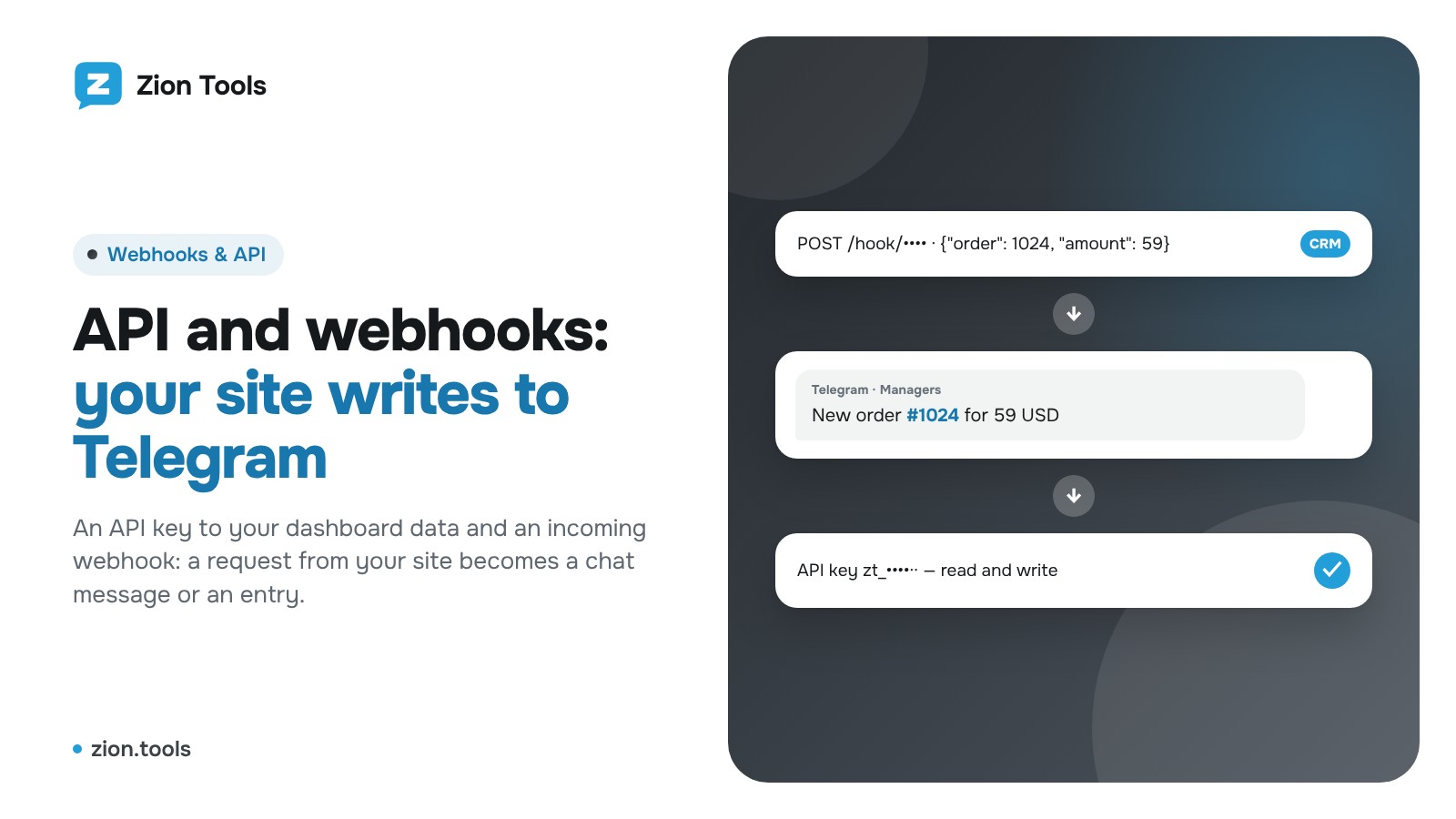
The Webhooks & API tab in Settings connects Zion Tools to your services: your website, CRM, TradingView, Zapier, Make or your own script. There are two tools, and both are free with any plan.
- An API key: your programs read dashboard data themselves: balance, accounts, routes, Bookkeeping entries, module logs. A key with write access also sends messages from accounts and adds entries.
- An incoming webhook: a URL your service sends an event to. Zion performs the action right away: writes a Telegram message or adds a Bookkeeping entry.
Step 1. Issue an API key
Open Settings → the Webhooks & API tab and press Create key. Give it a name (for example, “CRM”) and choose the access:
- Read only: balance, accounts, routes and module logs;
- Read and write: plus messages from accounts, Bookkeeping entries and AML checks.
Issuing a key is confirmed with your dashboard password (and a Google Authenticator code if it’s enabled). A key works until you delete it, and signing out doesn’t revoke it. The key is shown once, so copy it and store it in your program’s settings. Lost it? Delete the key and create a new one.
Step 2. Send your first request
The API address is https://zion.tools/api/v1, and the key goes in the Authorization: Bearer header followed by your key. The first request is GET /api/v1/me: the response contains your profile, balance and plan. Responses are JSON, amounts are strings with two decimals, times are Unix time.
The full list of methods is behind All methods in “How to connect”: accounts and their chats, forwarding routes, Bookkeeping entries and categories, receipts, Alerts and Validator logs, Analytics transactions and balance history. Long lists come in pages: the limit and before parameters.
You can’t top up or withdraw money, stake or change your plan via the API; that’s only possible in the dashboard. Paid actions (AML checks) cost the same as in the dashboard. No more than 120 requests per minute per key.
Step 3. Create an incoming webhook
In Incoming webhooks press Create webhook, give it a name and choose what to do with a request:
- Message from account: to any chat of your Telegram account: choose the account and the chat;
- Message via bot: the “Alerts” bot writes to a chat connected to it in “Alerts”;
- Bookkeeping entry: the amount from the amount field goes to the chosen category.
After saving, the webhook URL is copied automatically. Paste it into your service’s settings. The URL is a secret: anyone who knows it can send a request. If it got into the wrong hands, press “New URL” and the old one stops working right away.
Step 4. Set up the message text
A webhook accepts JSON, a form or plain text. Without a template Telegram receives the text field (or message, content), and if there isn’t one, all request fields as “field: value” lines.
With a template, JSON fields are put into the text in curly braces. For example, the template “New order #{order.id} for {amount}” and the request {"order": {"id": 1024}, "amount": 59} produce the message “New order #1024 for 59”. List items are reached by index: {items.0.name}.
For Bookkeeping the amount comes from the amount field (1500 or -249.90), another category from the category field (command or name), and the comment from the template or the comment field.
Step 5. Test it and watch the log
The Check button sends a test request right from the dashboard. It is executed for real, and the bottom of the window has a ready curl command for your service. Each webhook has a request counter, the time of the last one and a Log: what arrived, what was done and the error, if any (for example, “No amount” or “The account is offline”). The switch turns a webhook off without deleting it.
A message from an account is sent while your plan is paid and the account is online; no more than 30 requests per minute per webhook.
The other way round
To have events from Zion arrive in your service by themselves (new forwarded messages, Alerts triggers, found duplicates, receipts), use outgoing webhooks: the Outgoing button on the same tab. They send events to Discord, Slack, MAX or your own URL with a signature.
More: Webhooks & API.